
页面标题栏
大约 4 分钟
UIKit-Flutter 集成文档
页面标题栏
ChatUIKitAppBar 是可自定义的标题栏组件,实现了 PreferredSizeWidget 接口,可以在 Scaffold.appBar 中使用(与 Flutter AppBar 的使用方式相同)。它使用 NavigationToolbar 组件提供灵活的布局方式(leading、middle、trailing 三个区域),支持显示头像、状态图标、标题、副标题、导航按钮和菜单等多种元素。
聊天页面、会话列表页面、好友列表页面、群详情页面和好友详情页面的标题栏均使用 ChatUIKitAppBar。你可以根据自身需求设置标题栏。
概述
单聊和群聊页面的标题栏如下图所示:
标题栏 ChatUIKitAppBar
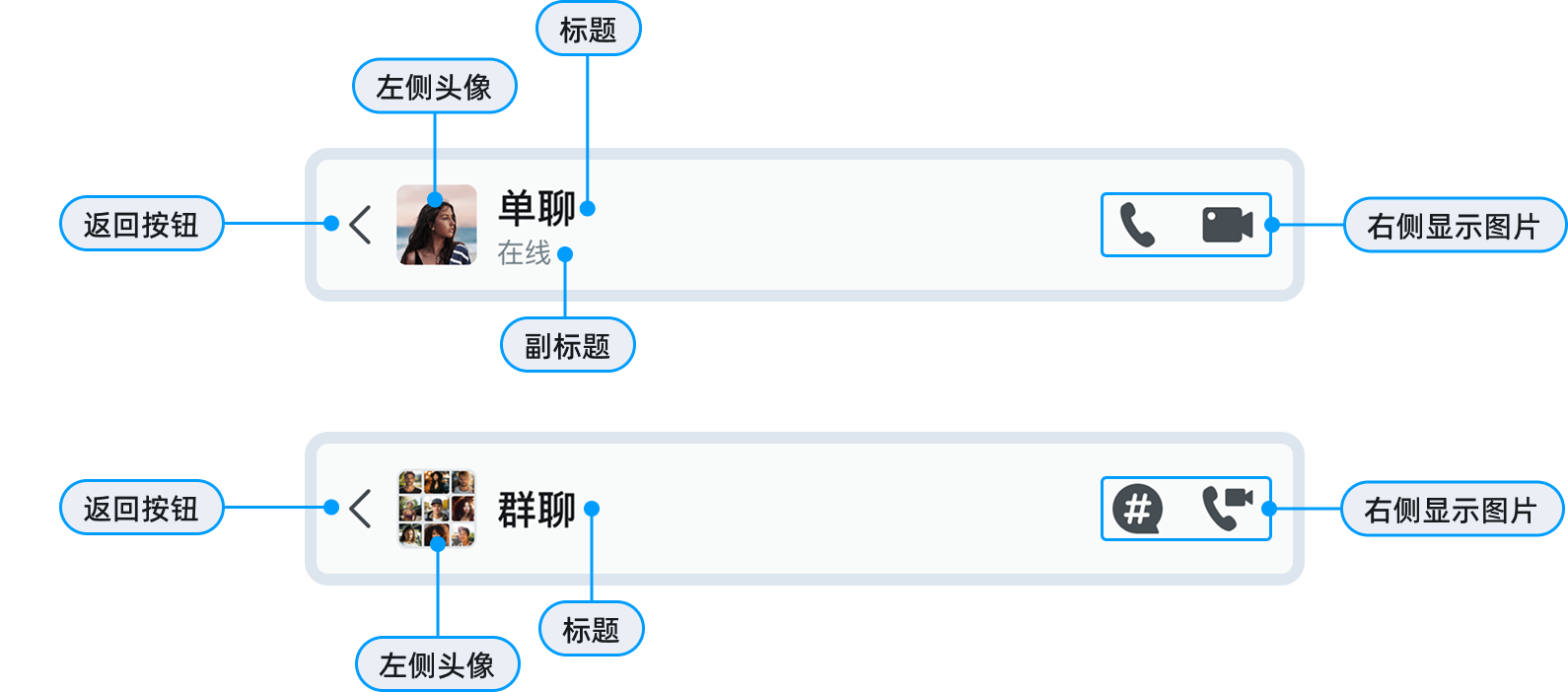
各页面的 ChatUIKitAppBarModel 提供如下属性:
| 属性 | 描述 |
|---|---|
title | 设置标题栏的中部标题。 |
subtitle | 设置副标题(仅聊天页面支持)。 |
showBackButton | 设置是否显示返回按钮,默认显示。 - (默认) true:显示。- false: 不显示。 |
onBackButtonPressed | 设置点击标题栏返回按钮的回调。 |
leadingActions | 设置左侧控件列表。 |
trailingActions | 设置右侧控件列表。 |
centerTitle | 设置是否居中显示标题。 |
backgroundColor | 设置背景颜色。 |
- 设置聊天页面标题栏:
MessagesView(
  profile: profile,
  appBarModel: ChatUIKitAppBarModel(
    title: '张三', // 设置标题
    subtitle: '在线', // 设置副标题(仅聊天页面支持)
    showBackButton: true, // 显示返回按钮
    onBackButtonPressed: () {
      Navigator.of(context).pop();
    }, // 返回监听
    leadingActions: [
      // 左侧控件
      ChatUIKitAppBarAction(
        actionType: ChatUIKitActionType.avatar,
        child: ChatUIKitAvatar(
          size: 32,
          avatarUrl: 'https://example.com/avatar.png',
        ),
      ),
    ],
    trailingActions: [
      // 右侧控件
      ChatUIKitAppBarAction(
        child: IconButton(
          icon: Icon(Icons.more_vert),
          onPressed: () {
            // 处理更多操作
          },
        ),
      ),
    ],
  ),
)
- 设置会话列表页面标题栏:
ConversationsView(
  appBarModel: ChatUIKitAppBarModel(
    title: '消息', // 设置标题
    showBackButton: false, // 首页不显示返回
  ),
)
- 设置好友列表标题栏:
ContactsView(
  appBarModel: ChatUIKitAppBarModel(
    title: '好友', // 设置标题
    showBackButton: false, // 显示返回按钮
  ),
)
设置是否启用标题栏
例如,设置是否启用会话列表页面的标题栏:
ConversationsView(
  enableAppBar: true, // 是否显示默认的标题栏(ChatUIKitAppBar):(默认)true:是;false: 否。
)
设置标题栏背景色
ChatUIKitAppBarModel(
  backgroundColor: Colors.blue, // 设置背景色
)
设置左侧头像
ChatUIKitAppBarModel(
  leadingActions: [
    ChatUIKitAppBarAction(
      actionType: ChatUIKitActionType.avatar,
      child: ChatUIKitAvatar(
        size: 40,
        avatarUrl: 'https://example.com/avatar.png',
      ),
    ),
  ],
)
设置左侧头像及文本区域点击事件
ChatUIKitAppBarModel(
  leadingActions: [
    ChatUIKitAppBarAction(
      actionType: ChatUIKitActionType.avatar,
      child: GestureDetector(
        onTap: () {
          // logo 图标区域点击事件
        },
        child: ChatUIKitAvatar(
          size: 40,
          avatarUrl: 'https://example.com/avatar.png',
        ),
      ),
    ),
  ],
)
设置中部标题
例如,设置会话列表页面的标题栏中的标题:
ChatUIKitAppBarModel(
  title: '消息', // 文本设置
  centerTitle: true, // 居中显示
)
设置副标题
仅聊天页面支持在标题栏设置副标题。
ChatUIKitAppBarModel(
  title: '张三',
  subtitle: '在线', // 设置副标题
  subTitleTextStyle: TextStyle(
    fontSize: 12,
    color: Colors.grey[600],
  ),
)
设置右侧显示图标
一般情况下,右侧会支持设置多个图标。UIKit 采用设置 trailingActions 的方式进行设置。
例如,ConversationsView 提供默认的右侧菜单。若默认菜单不满足需求,可以替换为自己的菜单:
ChatUIKitAppBarModel(
  trailingActions: [
    // 添加 menu
    ChatUIKitAppBarAction(
      child: IconButton(
        icon: Icon(Icons.add),
        onPressed: () {
          // 处理添加操作
        },
      ),
    ),
    ChatUIKitAppBarAction(
      child: IconButton(
        icon: Icon(Icons.search),
        onPressed: () {
          // 处理搜索操作
        },
      ),
    ),
  ],
)
设置返回按钮和事件监听
例如,设置会话列表页面的标题栏中的返回按钮:
ChatUIKitAppBarModel(
  showBackButton: true, // 设置是否支持显示返回按钮:(默认) true:是;false: 否。
  onBackButtonPressed: () {
    Navigator.of(context).pop();
  }, // 设置点击标题栏返回按钮的监听器。
)
常见问题
设置的 Title 不显示?
检查是否设置了 centerWidget 且未调整布局。centerWidget 和 title 共享空间,如果 centerWidget 太大可能遮挡标题。
// 确保 centerWidget 大小合适
ChatUIKitAppBarModel(
  centerWidget: SizedBox(
    width: 40,
    height: 40,
    child: Icon(Icons.chat),
  ),
)
菜单图标颜色不生效?
确保在设置 trailingActions 时正确设置图标颜色:
ChatUIKitAppBarModel(
  trailingActions: [
    ChatUIKitAppBarAction(
      child: IconButton(
        icon: Icon(Icons.more_vert, color: Colors.white), // 设置颜色
        onPressed: () {},
      ),
    ),
  ],
)
状态图标如何显示?
状态图标通过 leadingActions 或 centerWidget 设置:
ChatUIKitAppBarModel(
  leadingActions: [
    ChatUIKitAppBarAction(
      child: Stack(
        children: [
          ChatUIKitAvatar(
            size: 40,
            avatarUrl: 'https://example.com/avatar.png',
          ),
          Positioned(
            right: 0,
            bottom: 0,
            child: Container(
              width: 12,
              height: 12,
              decoration: BoxDecoration(
                color: Colors.green,
                shape: BoxShape.circle,
              ),
            ),
          ),
        ],
      ),
    ),
  ],
)
使用 Builder 配置后如何修改标题栏?
Builder 只进行初始化配置,后续可以在 Widget 中通过 setState 更新 appBarModel:
class MyPage extends StatefulWidget {
State<MyPage> createState() => _MyPageState();
}
class _MyPageState extends State<MyPage> {
ChatUIKitAppBarModel? appBarModel;
void initState() {
super.initState();
appBarModel = ChatUIKitAppBarModel(
title: '初始标题',
);
}
void updateTitle() {
setState(() {
appBarModel = ChatUIKitAppBarModel(
title: '新标题',
);
});
}
Widget build(BuildContext context) {
return MessagesView(
profile: profile,
appBarModel: appBarModel,
);
}
}