
消息列表的基本设置
大约 5 分钟
UIKit-iOS 集成文档
消息列表的基本设置
消息列表是聊天界面的核心组件,基于 MessageListController 和 MessageListView 实现。本文介绍如何对消息列表和消息条目进行基本设置。
聊天页面 MessageListController.swift
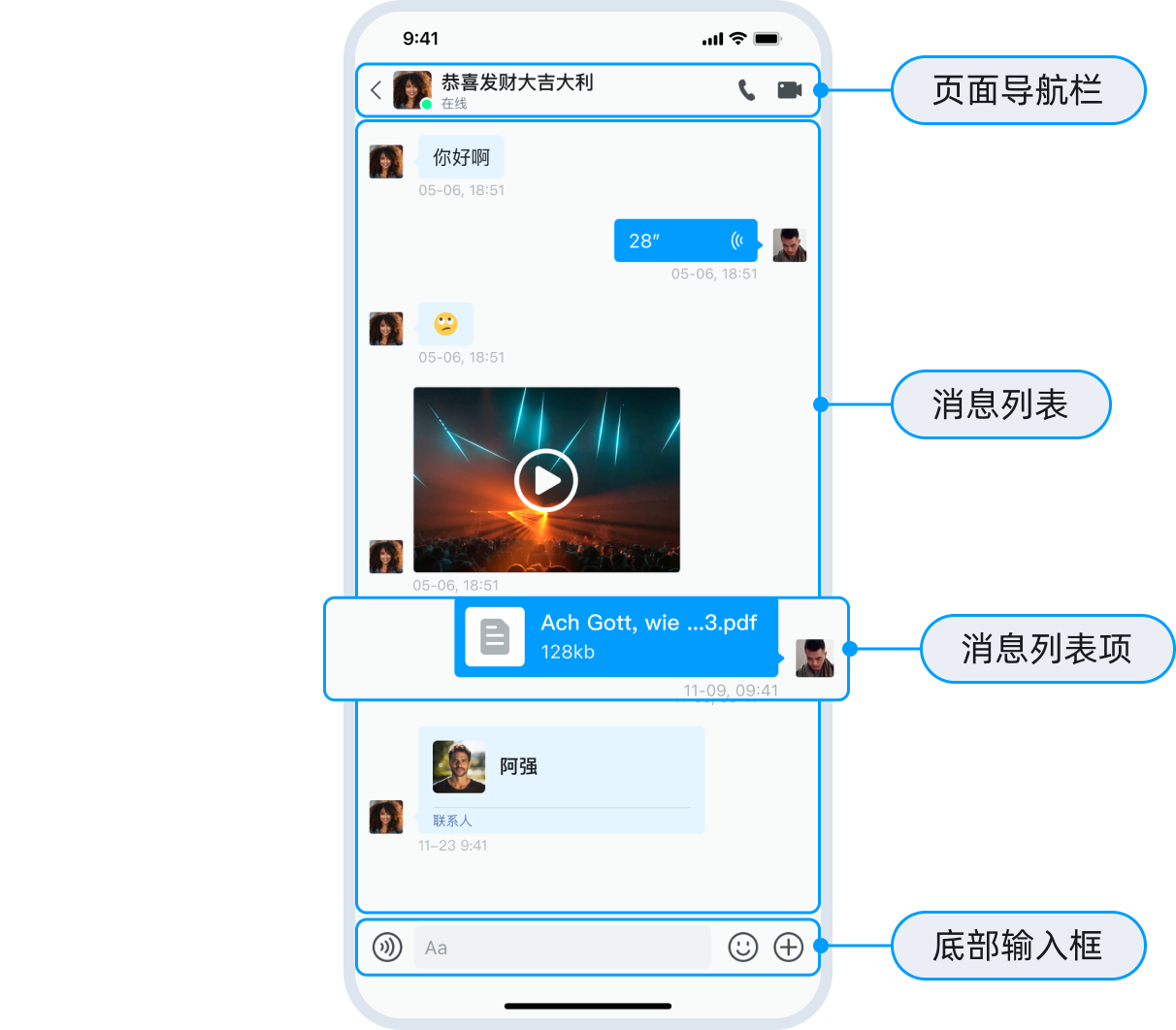
概述
在 iOS UIKit 中,基本设置主要通过 Appearance.chat 全局配置对象完成,也可通过继承 MessageListController 并重写相关方法实现交互逻辑的自定义。
设置消息列表背景
通过向消息容器插入自定义视图设置背景:
  let background = UIImageView(frame: self.messageContainer.bounds)
  background.image = UIImage(named: "")
  self.messageContainer.insertSubview(background, at: 0)
设置消息条目

设置头像和昵称
头像和昵称的显示由 Appearance.chat.contentStyle 控制:
// 显示头像和昵称
Appearance.chat.contentStyle = [.withAvatar, .withNickName]
// 仅显示昵称
Appearance.chat.contentStyle = [.withNickName]
// 仅显示头像
Appearance.chat.contentStyle = [.withAvatar]
// 设置头像圆角
Appearance.avatarRadius = .large
设置消息气泡
消息气泡如下图所示:

设置消息气泡样式
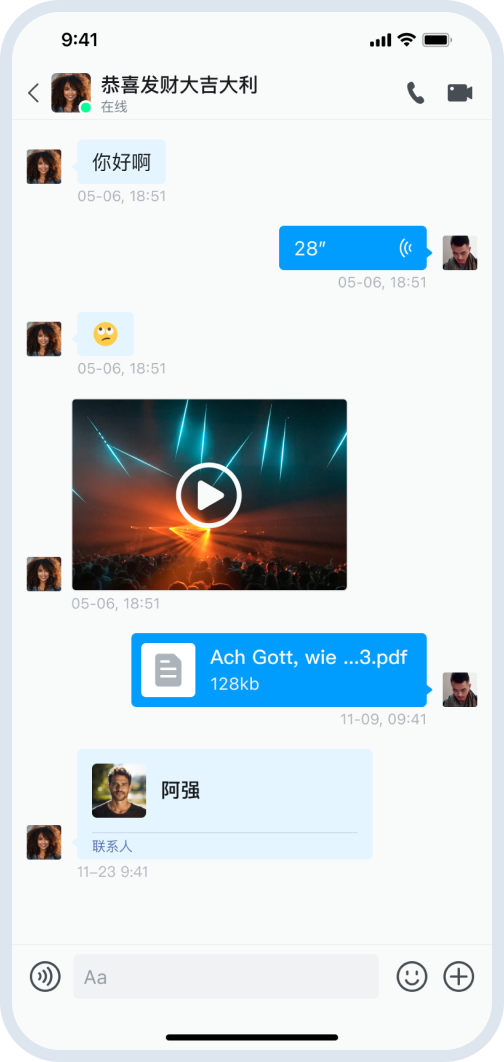
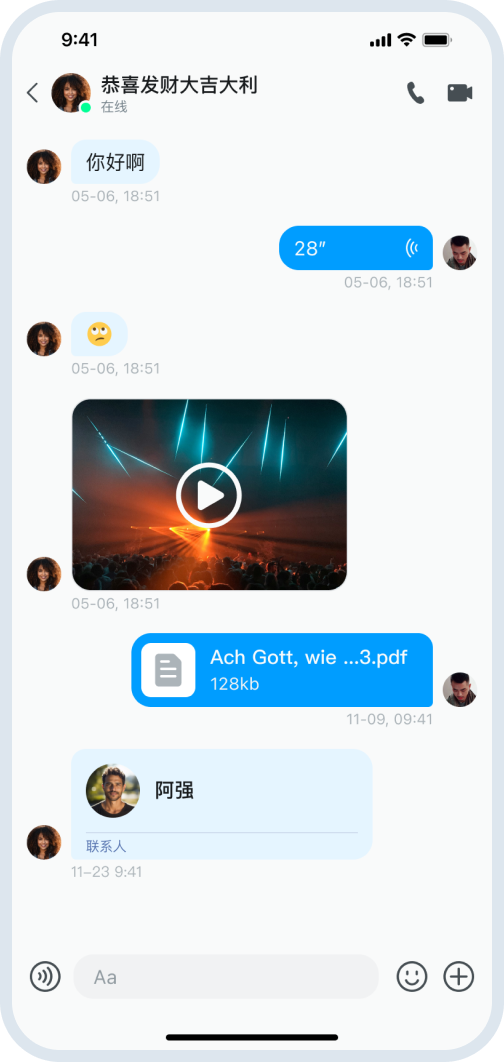
通过 Appearance.chat.bubbleStyle = withArrow 设置气泡样式,支持带箭头与圆角两种:
Appearance.chat.bubbleStyle = .withArrow
带箭头的方角气泡
圆角气泡
设置消息气泡内容与样式
通过 Appearance.chat 配置消息气泡的全局样式。
Appearance.chat.contentStyle用于设置消息中显示的内容元素,支持组合配置回复气泡、头像、昵称、时间等:
// 设置消息内容显示元素:回复、头像、昵称、时间等
Appearance.chat.contentStyle = [.withReply, .withAvatar, .withNickName, .withDateAndTime]
// 仅显示头像和昵称
Appearance.chat.contentStyle = [.withAvatar, .withNickName]
// 设置发送方和接收方的文本颜色
Appearance.chat.sendTextColor = UIColor.white
Appearance.chat.receiveTextColor = UIColor.black
- 支持添加表情回复(
MessageReaction)和话题(MessageThread)。添加前,需在 环信控制台 开通。
        //是否显示消息话题。
        if self.messageThread {
            Appearance.chat.contentStyle.append(.withMessageThread)
        }
        //是否显示表情回复。
        if self.messageReaction {
            Appearance.chat.contentStyle.append(.withMessageReaction)
        }
修改消息气泡背景色
支持两种修改方式:
- 直接修改源码(本地集成):修改
MessageBubbleMultiCorner(多角气泡)或MessageBubbleWithArrow(带箭头气泡)中的渲染逻辑。 - 全局主题配置(推荐):通过修改
Appearance中的色调值(hue)统一调整,主要修改primaryHue。
设置消息时间
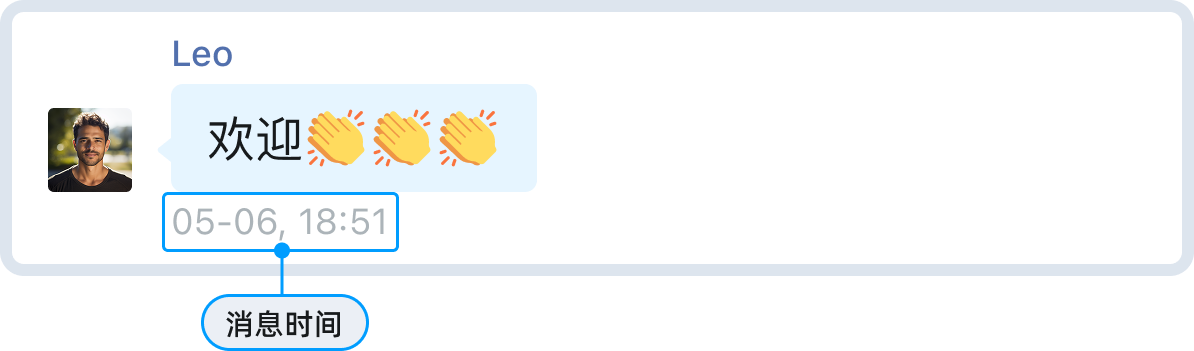
设置消息时间格式
Appearance.chat.dateFormatToday = "HH:mm":当天格式Appearance.chat.dateFormatOtherDay = "MM-dd HH:mm"非当天格式
设置消息时间
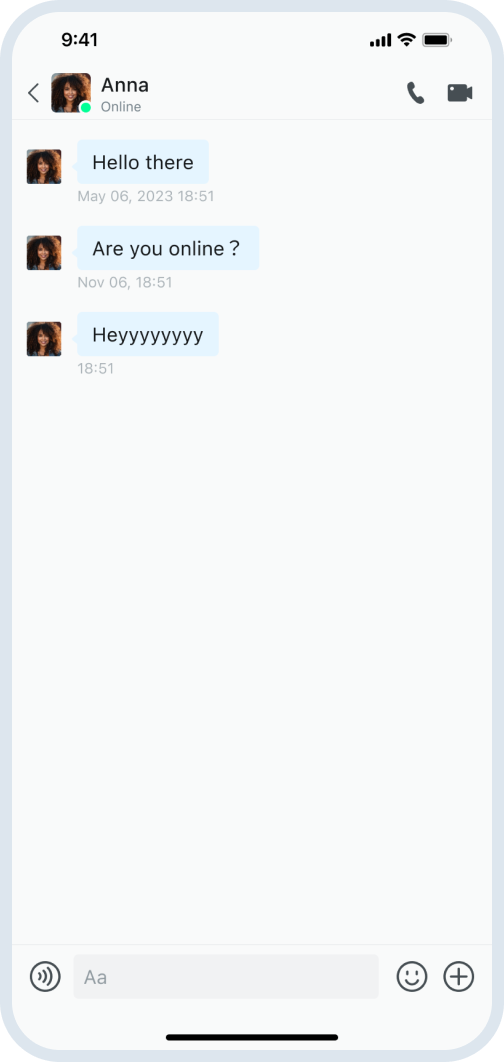
设置消息时间样式
- 文本颜色:全局修改
primaryHue值,影响所有使用该色调的文本。 - 字体大小:修改主题字体配置
UIFont.theme.bodySmall = UIFont(),影响所有使用bodySmall样式的文本,不仅限于时间显示。
设置长按消息菜单
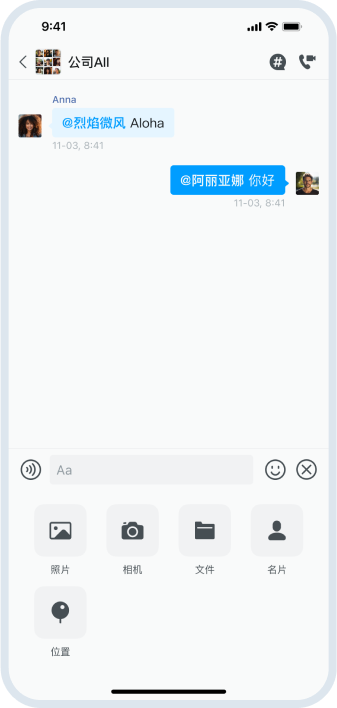
消息长按时弹出操作菜单,支持复制、回复、转发、置顶、多选、翻译、创建话题等功能。
UIKit 提供两种菜单样式:
- 启用类似微信样式菜单(带箭头):
Appearance.chat.messageLongPressMenuStyle = .withArrow
- 启用仿 iOS 系统 ActionSheet 样式菜单:
Appearance.chat.messageLongPressMenuStyle = .actionSheet
关于菜单项的添加、删除、显示/隐藏以及样式的设置,详见 消息列表的高级设置说明。
UIActionSheet
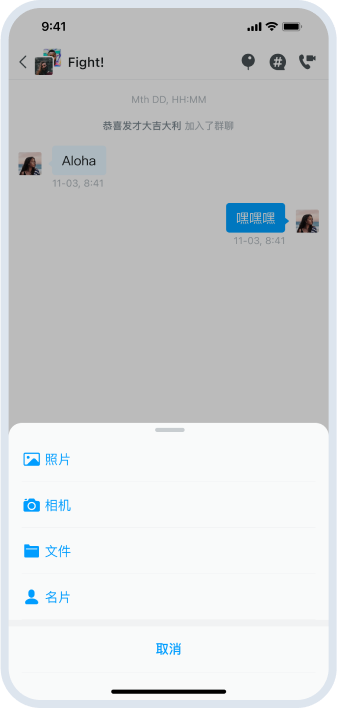
类似微信样式
设置事件监听
实现 MessageListViewActionEventsDelegate 协议,并将其添加到 MessageListView 的事件处理器中:
@objc public protocol MessageListViewActionEventsDelegate: NSObjectProtocol {

    // 消息列表下拉刷新时触发此方法
    func onMessageListPullRefresh()
    // 消息列表上拉加载更多时触发此方法
    func onMessageListLoadMore()

    // 消息回复内容被点击时触发此方法
    /// - message 参数: `ChatMessage`
    func onMessageReplyClicked(message: MessageEntity)

    // 消息内容被点击时触发此方法
    // message 参数: `MessageEntity`
    func onMessageContentClicked(message: MessageEntity)

    // 消息内容被长按时触发此方法
    // - message 参数: `MessageCell`
    func onMessageContentLongPressed(cell: MessageCell)

    // 消息头像被点击时触发此方法
    // - profile 方法: `ChatUserProfileProtocol`
    func onMessageAvatarClicked(profile: ChatUserProfileProtocol)

    // 消息头像被长按时触发此方法
    // - profile 方法: `ChatUserProfileProtocol`
    func onMessageAvatarLongPressed(profile: ChatUserProfileProtocol)

    // 输入框事件发生时触发此方法
    /// - type 参数: `MessageInputBarActionType`
    /// - type: NSAttributedString of textfield.
    func onInputBoxEventsOccur(action type: MessageInputBarActionType,attributeText: NSAttributedString?)

    // 失败消息状态视图被点击时触发此方法
    // - entity 参数: `MessageEntity`
    func onFailureMessageRetrySend(entity: MessageEntity)

    // 消息在屏幕上滚动可见时触发
    // - entity 参数: `MessageEntity`
    func onMessageVisible(entity: MessageEntity)

    // 消息话题视图被点击时触发
    /// - entity 参数: `MessageEntity`
    func onMessageTopicClicked(entity: MessageEntity)

    // 消息表情回复或"..."按钮被点击时触发
    // - 参数:
    //   - reaction: `MessageReaction` 对象,若为 nil 则表示"..."按钮被点击
    //   - entity: `MessageEntity`
    func onMessageReactionClicked(reaction: MessageReaction?,entity: MessageEntity)

    // 消息多选工具栏被点击时触发
    //  - operation 参数: `MessageMultiSelectedBottomBarOperation`
    func onMessageMultiSelectBarClicked(operation: MessageMultiSelectedBottomBarOperation)

    // 更多消息按钮被点击时触发
    func onMoreMessagesClicked()


}
class MyViewController: UIViewController, MessageListViewActionEventsDelegate {
    func onMessageAvatarClicked(profile: ChatUserProfileProtocol) {
        // 处理点击
    }

    // ... 实现其他代理方法
}

// 在控制器中添加监听
chatVC.messageContainer.addActionHandler(actionHandler: self)
完整代理方法说明:
| 方法 | 描述 |
|---|---|
onMessageListPullRefresh() | 消息列表下拉刷新时触发 |
onMessageListLoadMore() | 消息列表上拉加载更多时触发 |
onMessageReplyClicked(message:) | 消息回复内容被点击时触发 |
onMessageContentClicked(message:) | 消息内容被点击时触发 |
onMessageContentLongPressed(cell:) | 消息内容被长按时触发 |
onMessageAvatarClicked(profile:) | 消息头像被点击时触发 |
onMessageAvatarLongPressed(profile:) | 消息头像被长按时触发 |
onInputBoxEventsOccur(action:attributeText:) | 输入框事件发生时触发 |
onFailureMessageRetrySend(entity:) | 失败消息重发按钮被点击时触发 |
onMessageVisible(entity:) | 消息在屏幕上可见时触发 |
onMessageTopicClicked(entity:) | 消息话题视图被点击时触发 |
onMessageReactionClicked(reaction:entity:) | 消息表情回复或"..."按钮被点击时触发 |
onMessageMultiSelectBarClicked(operation:) | 消息多选工具栏被点击时触发 |
onMoreMessagesClicked() | 更多消息按钮被点击时触发 |
消息发送回调
通过 MessageListController 监听消息发送状态,或在消息发出前进行预处理。建议采用以下任一方式:
- 继承重写:继承
MessageListController并重写其 ViewModel 的相关方法。 - 通知监听:监听消息状态变更通知。
可重载方法标记
MessageListController 及其组件类中的许多方法均标记为 open,可通过子类化深度定制业务逻辑。